
| Chat Help | |
|
|
|
Before you make a call
* both chatters need to be running a voice-enabled client,
which means build 170 or later
* at least one of the two chatters involved in the call must have an open firewall.
In some cases, both chatters must do this.
* please remember that when you are in a call with someone, your IP number is
available to them.
* both chatters need a microphone
* both chatters need sound - a headset works best for voice chat.
* IF YOU USE YAHOO VOICE you'll need to quit that program, RESTART, and
make sure you don't use Halsoft Chat and Yahoo Voice at the same time.
* Most popular filters, including Cerberus, don't work with build 170. These
programs are, in many cases, several years old. Feel free to contact the original
maker of the software to request an update.
The Basics
Right-click on an avatar or on a name and select "call". If all goes smoothly, the other chatter will hear a ring. When they answer, the voice dialog box will say "connected."
The Not-so Basics - Firewalls and Routers
Many people use routers and firewalls. Some people even use both. Every router and firewall has it's own configuration for allowing voice chat to work. In most cases there are several configuration possibilities. We've included directions for the most popular firewalls, and links to support pages for several popular routers. If you don't see your router or firewall here, please check the manufacturers web site for support files.
Firewalls
Windows XP
Zone Alarm
Black Ice Defender
NeoWatch
Norton
Routers
You might need to know your IP number for many of the router options. To get it, go to the start menu and select "run".
For Windows 2000 and Windows XP:
* type "cmd"
* click "ok"
* you'll see a window with a black background and white type
* type "ipconfig"
* your IP address will appear in that window
For Windows 98
* type "command"
* click "ok"
* you'll see a window with a black background and white type
* type "ipcfg"
* your IP address will appear in that window
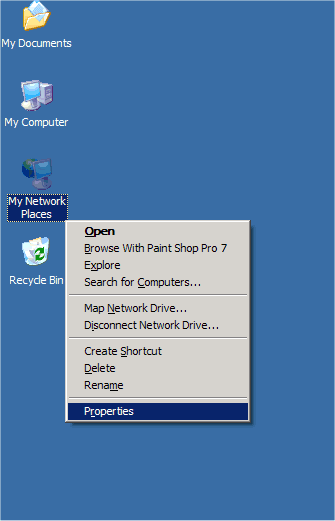
1) Right click on My Network Places and select Properties.
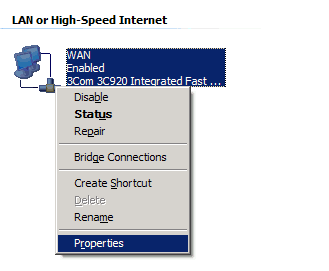
2) Select your Internet connection and click on Properties.
3) Click on the Advanced tab.
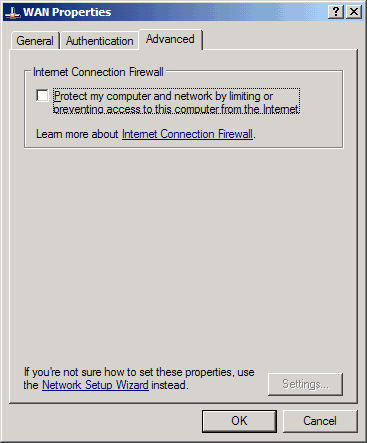
4) Make sure the Internet Connection Firewall box is unchecked. Click OK and OK again and you're ready to go.
1) When you start Halsoft Voice Chat you'll see this popup:
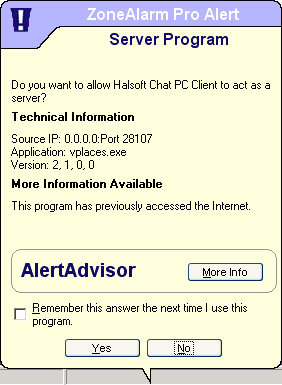
2) Check the "Remember this answer the next time I use this program" box, then click Yes. You'll need to restart Halsoft Chat to continue.
1) Click on Tools and select Advanced Firewall Settings.
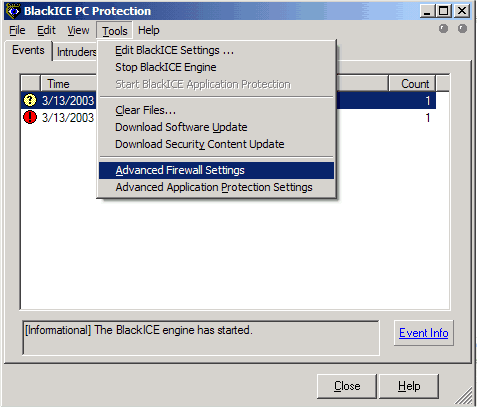
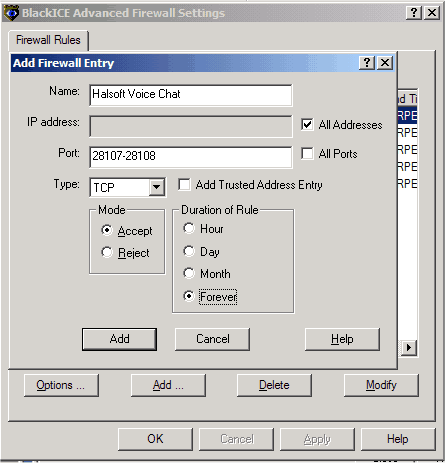
2) Click Add.
3) Add Halsoft Voice Chat as indicated below.
4) Click Add, then OK.
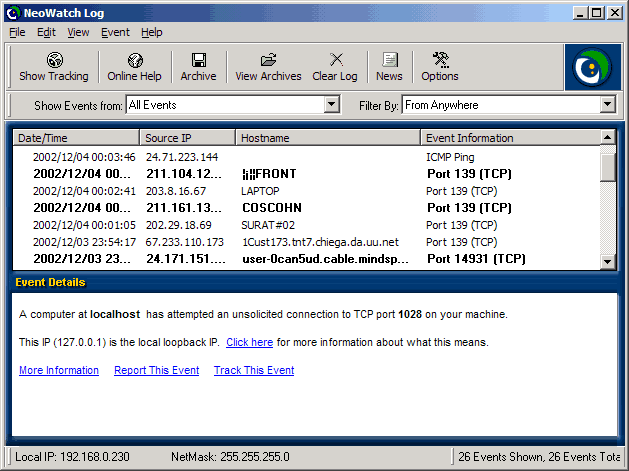
1) Click on Options.
2) Select the Applications tab, then click on Add...
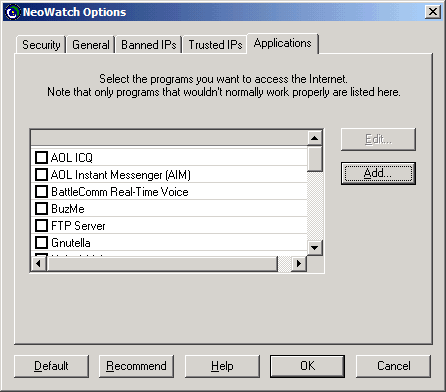
3) Add Halsoft Voice Chat as shown below, then click OK.
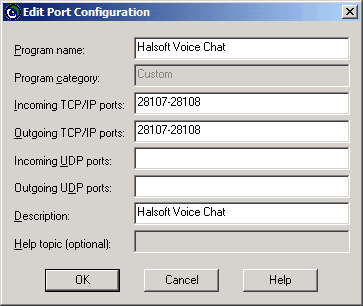
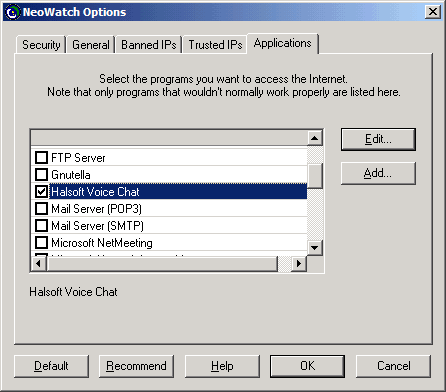
4) Check off Halsoft Voice Chat, then click OK.
1) When you start Halsoft Voice Chat you'll see this popup:
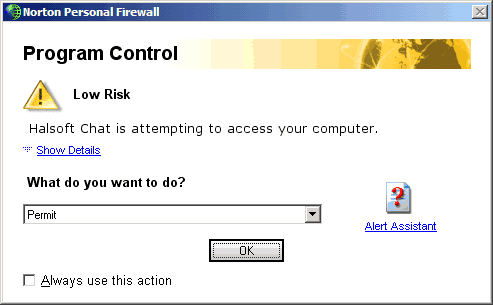
2) Select the "Permit" from the drop-down menu, then check the "always use this action" and click OK.
Routers
Router configuration depends on many factors, including your specific router model, operating system, and bios configuration. Most manufacturers have excellent support documents as well as live technical support to help you with these issues.
Linksys offers many types of support at http://www.linksys.com/contact/contact.asp and some excellent tutorial files at http://www.linksys.com/download/
Help files for SMC Routers are available at http://www.smc.com/index.cfm?sec=Support&pg=Support-Center&site=c